


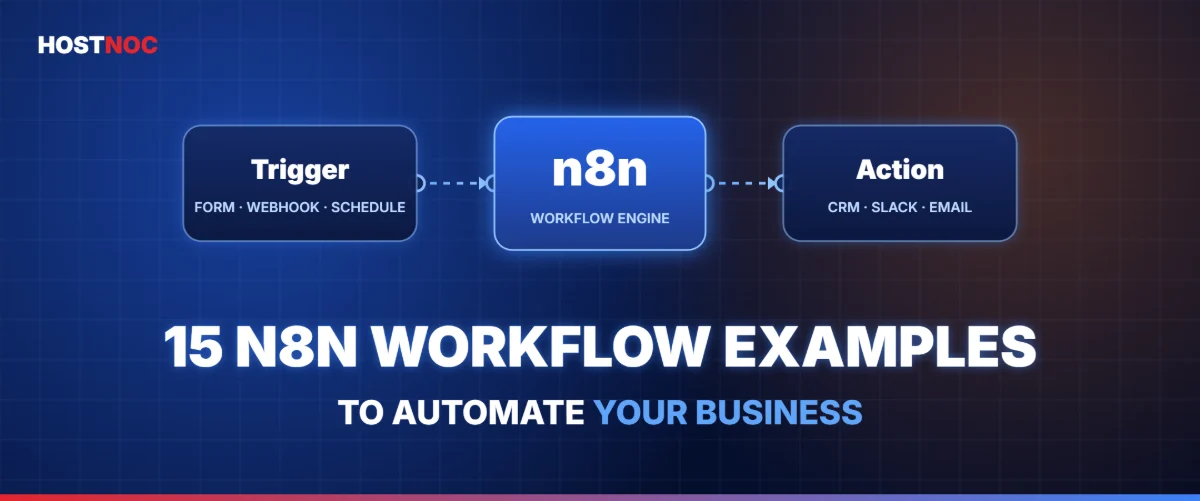
If your team spends time copying data between apps, sending repetitive emails, updating CRM records or checking systems manually, an n8n workflow can take over the repetitive part. n8n connects applications and APIs into visual workflows, so you can move, transform, filter and act on data with little or no code.
🔑 Key Takeaways
- These 15 n8n workflow examples cover marketing, sales, customer support, AI and DevOps.
- Every example lists the trigger, nodes used and step-by-step setup, so you can build it right away.
- Most workflows follow one simple pattern: Event → Process → Decision → Action.
- Add error workflows, duplicate checks and API rate-limit handling before you rely on automations in production.
- Business-critical workflows need reliable n8n hosting with uptime, backups, updates and monitoring.
A workflow can start from an app event, a schedule, a webhook, a form submission or another workflow, then pass data through a series of nodes. The examples below include the trigger, the nodes to use and a practical setup approach for each one.
☰ Table of Contents (click to expand)
What Is an n8n Workflow?
An n8n workflow is a series of connected nodes that automatically performs a task when a defined trigger occurs. A typical flow looks like this:
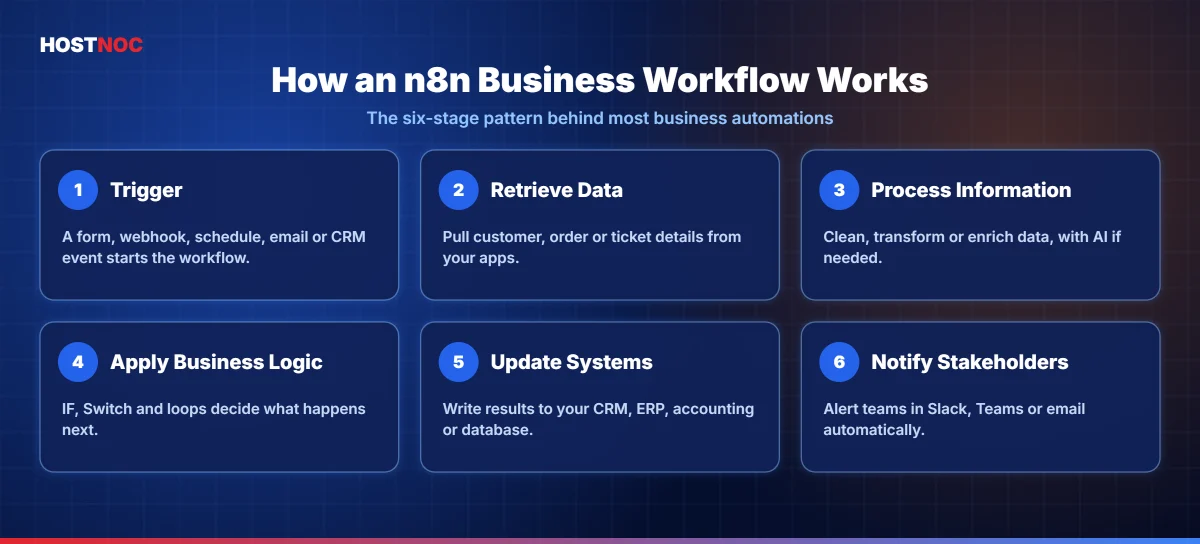
Trigger → Get Data → Filter / Transform → Take Action → Notify / Store Result
A workflow could start when someone fills out a form, a new Gmail message arrives, the clock hits 8 AM or an HTTP request comes in. From there, n8n can send data to a CRM, spreadsheet, AI model, database, Slack, an email service or any other app.
That flexibility makes n8n useful for everything from simple notifications to multi-step business processes. For a broader view of department-level automation, read our guide on n8n workflows for businesses.
Every one of the n8n workflow examples below follows this same pattern of trigger, processing nodes and final action. Most n8n use cases can also be adapted from ready-made n8n templates, so you rarely need to start from a blank canvas.
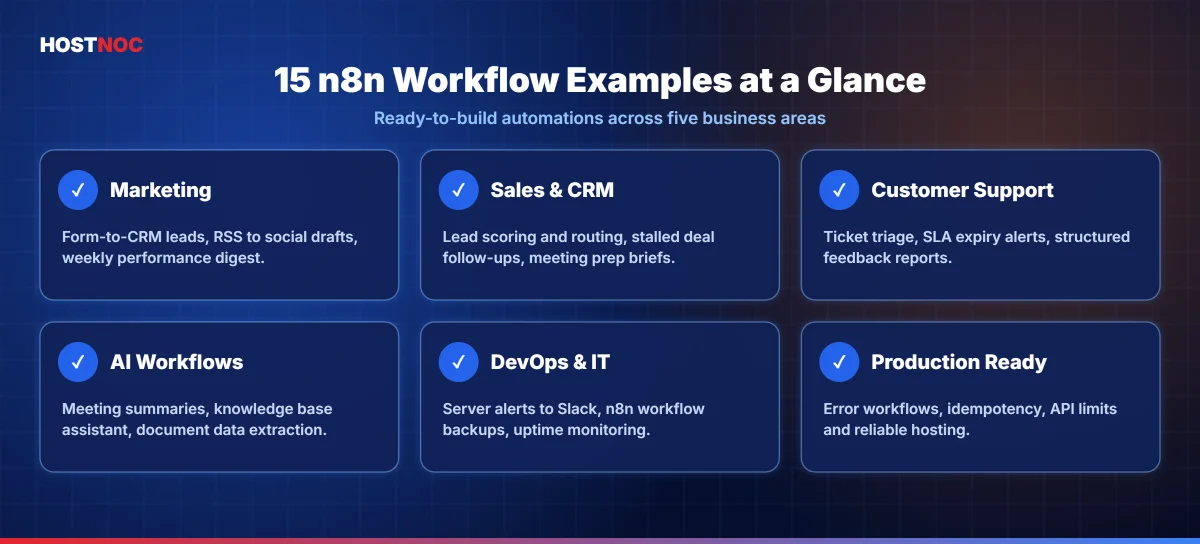
Marketing n8n Workflow Examples
These n8n workflow examples help marketing teams capture leads, repurpose content and report on results without manual copy and paste. They are also some of the easiest n8n use cases to start with.
1. Send New Leads From a Form to Your CRM
What it does: When someone submits a website form, the workflow creates or updates the contact in your CRM and notifies your marketing or sales team. No more downloading submissions or copying contact details by hand.
Trigger: n8n Form Trigger or Webhook
Nodes used: Form Trigger, Edit Fields, IF, HubSpot, Salesforce, Pipedrive or another CRM, Slack, Google Sheets (optional)
How to set it up:
- Create your form and collect fields such as name, email, company and message.
- Add a Form Trigger or Webhook node.
- Use Edit Fields to standardize the incoming data.
- Search your CRM by email address.
- If the contact exists, update it. Otherwise, create a new contact.
- Send a Slack notification with the lead’s name, company, source and message.
- Optionally append the submission to Google Sheets for reporting.
The n8n templates library includes a similar workflow that receives leads by webhook, checks for duplicates, routes leads, updates HubSpot and logs results in Google Sheets.
2. Turn RSS Content Into Social Media Drafts
What it does: Monitor industry publications or company blogs and turn new articles into social media drafts for your team. Great for content curation without checking RSS feeds every morning.
Trigger: Schedule Trigger
Nodes used: Schedule Trigger, RSS Feed Trigger or RSS Read, Remove Duplicates, OpenAI or another LLM, Edit Fields, Google Sheets, Airtable or Notion
How to set it up:
- Schedule the workflow to run once or twice a day.
- Read the RSS feeds you follow.
- Remove articles that were already processed.
- Send each article title and summary to an AI node with instructions to write a LinkedIn or X post.
- Store the generated copy in your content calendar.
- Set the status to Draft so a human reviews it before publishing.
For higher volume, add separate branches for LinkedIn, X, newsletter copy and internal Slack summaries.
3. Create a Weekly Marketing Performance Digest
What it does: Pull marketing metrics from several sources and send one weekly summary to your team, instead of opening multiple dashboards.
Trigger: Schedule Trigger
Nodes used: Schedule Trigger, HTTP Request, Google Analytics or another analytics integration, Google Ads / Meta Ads integration, Google Sheets, Code or Edit Fields, Slack or Gmail
How to set it up:
- Schedule the workflow for Monday morning.
- Fetch last week’s metrics from your analytics and ad platforms.
- Normalize metric names and formats.
- Calculate week-over-week changes.
- Build a short summary.
- Send the report to Slack or email.
- Save the raw metrics in Google Sheets for historical reporting.
Add an AI node to explain big changes in plain language, but keep the underlying numbers visible so your team can verify the summary.
Sales and CRM n8n Workflow Examples
Sales teams lose deals when follow-ups slip. The following n8n workflow examples keep your CRM clean, prioritize hot leads and prepare reps for every meeting.
4. Automatically Score and Route Inbound Leads
What it does: Score new leads against your ideal customer profile and send them to the right salesperson, cutting the delay between form submission and follow-up.
Trigger: Webhook or n8n Form Trigger
Nodes used: Webhook, Edit Fields, Code, HubSpot / Salesforce / Pipedrive, IF or Switch, Slack, Gmail
How to set it up:
- Receive the lead through a webhook.
- Validate required fields such as email and company.
- Calculate a score using company size, location, industry and requested product.
- Use an IF or Switch node to assign the lead to a sales rep.
- Create or update the CRM contact.
- Notify the assigned rep in Slack.
- Optionally generate an email draft for the rep.
n8n’s workflow templates show this pattern with lead validation, scoring, CRM upserts, Slack alerts, AI-generated outreach and Google Sheets logging.
5. Re-Engage Stalled CRM Deals
What it does: Find deals with no activity for a set number of days and start a follow-up process automatically.
Trigger: Schedule Trigger
Nodes used: Schedule Trigger, CRM node, IF, OpenAI, Gmail, CRM update, Google Sheets, Slack
How to set it up:
- Run the workflow every weekday morning.
- Retrieve open deals from your CRM.
- Calculate days since the last activity.
- Keep deals inactive beyond your threshold, such as seven days.
- Get the associated contact and email address.
- Generate a personalized follow-up draft.
- Send the email or create a draft for approval.
- Log the action in your CRM and reporting sheet.
A popular n8n template follows the same approach: it finds stalled HubSpot deals, writes personalized re-engagement emails, logs the action and notifies the sales team.
6. Build an Automatic Sales Meeting Prep Brief
What it does: When a prospect books a meeting, gather their CRM data and send the salesperson a short briefing before the call.
Trigger: Calendly Trigger or Webhook
Nodes used: Webhook, Google Sheets, HubSpot, HTTP Request, OpenAI, Slack, Gmail
How to set it up:
- Configure Calendly to send booking events to n8n.
- Extract the invitee’s email and meeting details.
- Search the CRM for the contact and open deals.
- Optionally enrich company data with an external API.
- Send the collected context to an AI node.
- Ask for three talking points, recent activity, open opportunities and suggested questions.
- Send the brief to the salesperson in Slack or by email.
- Log the meeting ID to prevent duplicate briefs.
n8n templates for this use case combine Calendly, HubSpot, Clearbit, OpenAI, Slack, Gmail and Google Sheets.
Host Your n8n Workflows on Reliable Servers
Run every workflow on fast, secure HostNOC infrastructure with NVMe storage, full root access and 24/7 support.
Customer Support n8n Use Cases
Support is one of the most valuable n8n use cases because faster responses directly improve customer satisfaction. These n8n workflow examples help you triage, escalate and learn from every ticket.
7. Automatically Triage Incoming Support Tickets
What it does: Classify new support requests, assign priority and route each one to the right team.
Trigger: Webhook, Gmail Trigger or a helpdesk trigger
Nodes used: Webhook / Gmail Trigger, Edit Fields, OpenAI, IF or Switch, Jira / Linear / Zendesk, Slack, Google Sheets
How to set it up:
- Receive the ticket from your helpdesk, inbox, form or another system.
- Normalize it into fields such as customer, subject, message and channel.
- Check for duplicates.
- Use an AI node to classify the issue and priority.
- Route urgent issues to your escalation channel.
- Create a ticket in Jira, Linear or your helpdesk.
- Store the classification and routing decision for auditing.
n8n examples show AI-assisted classification, CRM enrichment, escalation to project tools, Slack alerts and audit logging working together.
8. Alert the Team When an SLA Is About to Expire
What it does: Find unresolved tickets close to their service level agreement (SLA) deadline and alert the responsible team before it is missed.
Trigger: Schedule Trigger
Nodes used: Schedule Trigger, Jira / Zendesk / Linear, Filter or IF, Date & Time, Slack, Email
How to set it up:
- Run the workflow every 5–15 minutes.
- Query your ticketing system for unresolved tickets.
- Calculate the time left until each SLA deadline.
- Filter tickets near the threshold.
- Alert the responsible Slack channel.
- Escalate critical tickets to a manager or incident channel.
- Mark each ticket as notified so the team is not alerted repeatedly.
For larger support teams, store the notification timestamp in the ticket itself or in a database.
9. Turn Customer Feedback Into a Structured Report
What it does: Collect feedback from surveys, emails or forms and automatically sort it into themes.
Trigger: Webhook, Google Sheets Trigger or a survey integration
Nodes used: Webhook, OpenAI, Switch, Google Sheets / Airtable, Slack, Email
How to set it up:
- Send new feedback to n8n.
- Pass the feedback text to an AI classification node.
- Ask it to identify category, sentiment, product area and urgency.
- Store the structured result in a spreadsheet or database.
- Route urgent complaints to the customer success team.
- Send a weekly summary of the most common themes.
For more reliable results, define the allowed categories instead of letting the model invent new ones for every response.
HostNOC Tip: Always give AI nodes a fixed list of categories and ask for structured JSON output. It makes routing with IF and Switch nodes far more predictable.
AI-Powered n8n Workflow Examples
AI nodes make n8n far more powerful. These n8n use cases combine language models with your business data to summarize, answer questions and extract information automatically.
AI becomes more useful when it is part of a larger workflow rather than a standalone chatbot. n8n supports AI nodes and agent-style workflows alongside its regular automation nodes. Running heavy AI workloads? Read our guide to n8n hosting for AI automation.
10. Summarize Meetings and Create Follow-Up Tasks
What it does: Take a meeting recording or transcript, summarize it, extract action items and update your CRM.
Trigger: Webhook
Nodes used: Webhook, OpenAI / Whisper (transcription), AI Agent or OpenAI, HubSpot, Gmail, Google Docs, Slack
How to set it up:
- Send the meeting recording to an n8n webhook.
- Transcribe the recording.
- Pass the transcript to an AI model.
- Extract decisions, action items, owners and deadlines.
- Update the related CRM contact or deal.
- Create tasks for the salesperson.
- Draft a follow-up email.
- Save the meeting notes to Google Docs.
- Send a summary to Slack.
n8n workflow examples use transcription, AI analysis, HubSpot updates, Gmail drafts, Google Docs and Slack notifications in exactly this pattern.
11. Create an AI-Powered Knowledge Base Assistant
What it does: Let employees ask questions about internal documentation and get answers pulled from your company knowledge base.
Trigger: Chat Trigger
Nodes used: Chat Trigger, Text Splitter, Embeddings, Vector Store, Retriever, AI Agent or Question and Answer Chain, LLM
How to set it up:
- Collect documentation from sources such as Google Drive, Notion or your website.
- Split large documents into smaller chunks.
- Generate embeddings for each chunk.
- Store them in a supported vector database.
- Create a chat workflow that turns a user’s question into a search.
- Retrieve the most relevant documents.
- Pass the retrieved context to the AI model.
- Return the answer with source references where appropriate.
The n8n AI documentation covers vector stores, retrievers, agents and RAG-style workflows in detail.
12. Extract Structured Data From Incoming Documents
What it does: Turn invoices, forms, applications or other documents into clean, structured records.
Trigger: Webhook, email attachment or Google Drive trigger
Nodes used: Gmail / Google Drive / Webhook, Extract From File, OCR / document processing service, OpenAI or another AI model, Edit Fields, IF, Google Sheets / Postgres / CRM
How to set it up:
- Receive the document as a file.
- Extract its text or structured content.
- Send the relevant text to an AI extraction step.
- Ask for a fixed JSON structure, such as invoice number, vendor, date, total and tax.
- Validate the required fields.
- Store the record in your database or accounting system.
- Route exceptions to a human review queue.
Keep validation after the AI step. An AI-generated field is not automatically correct just because it has the right format.
Automate the repetitive part, keep humans in the loop for judgment and always validate what AI produces.
DevOps and IT n8n Use Cases
IT teams can use these n8n workflow examples to cut alert noise, protect their automations and catch downtime before customers notice it.
13. Turn Server Alerts Into Slack Incidents
What it does: Receive infrastructure alerts and notify the right team immediately, with useful context attached.
Trigger: Webhook
Nodes used: Webhook, Edit Fields, Switch, HTTP Request, Slack, Jira / PagerDuty / Linear
How to set it up:
- Configure your monitoring platform to send alerts to an n8n webhook.
- Normalize fields such as hostname, severity, alert name and timestamp.
- Use a Switch node to route alerts by severity or service.
- Send critical alerts to an incident channel.
- Create a Jira or Linear issue for incidents that need investigation.
- Optionally call your monitoring API for recent metrics or logs.
- Include a link to the monitoring dashboard in the Slack message.
This keeps n8n as the orchestration layer while your monitoring system remains the source of truth for infrastructure metrics.
14. Back Up n8n Workflows Automatically
What it does: Create scheduled backups of your n8n workflows and store them in version control.
Trigger: Schedule Trigger
Nodes used: Schedule Trigger, n8n node / n8n API, Code or Edit Fields, GitHub, Slack
How to set it up:
- Schedule a daily backup.
- Retrieve all workflows from your n8n instance.
- Convert workflow data into files suitable for version control.
- Compare the current version with the previous backup.
- Commit changed workflows to a private GitHub repository.
- Notify the team when a backup succeeds or fails.
n8n’s GitHub integration supports workflow backups, and n8n also offers source control on supported plans. Keep these repositories private, since they may contain environment settings or credential references.
15. Monitor Website Uptime and Alert Your Team
What it does: Check your most important URLs at regular intervals and alert your team as soon as a site goes down or slows down.
Trigger: Schedule Trigger
Nodes used: Schedule Trigger, HTTP Request, IF, Slack or Email, Google Sheets (optional)
How to set it up:
- Schedule the workflow to run every 1–5 minutes.
- Add an HTTP Request node for each URL you want to monitor, with a sensible timeout.
- Enable “Continue on Fail” so a failed request still passes data to the next node.
- Use an IF node to check the status code (for example, anything other than 200) or a slow response time.
- Send an alert to Slack or email with the URL, status code and time.
- Optionally log every check in Google Sheets to track uptime history.
- Add a “recovered” alert when the site is back online.
To avoid alert noise, only notify the team after two or three consecutive failures.
How to Use n8n Templates to Launch These Workflows Faster
You do not have to build every automation from scratch. The official n8n templates gallery contains thousands of community and team-built workflows you can import in one click. Using n8n templates is the fastest way to turn the n8n workflow examples in this guide into working automations.
- Search by app or goal: Look up the tools you already use, such as HubSpot, Slack or Google Sheets, or search for a task like lead routing.
- Import and review: Open the template in your n8n editor and read every node before you activate it.
- Add your credentials: Connect your own accounts and store API keys in n8n credentials, never inside node fields.
- Customize the logic: Adjust filters, field mapping and messages so the workflow matches your process.
- Test and activate: Run it with sample data, attach an error workflow and then switch it on.
Treat n8n templates as a starting point rather than a finished product. Small changes to naming, error handling and data validation make a big difference in production.
How to Choose the Right n8n Use Cases for Your Business
Not every task deserves automation. The best n8n use cases share a few traits:
- The task happens often, such as daily or weekly.
- It follows clear, predictable rules.
- It moves data between two or more systems.
- Mistakes or delays cost you time, money or customers.
Start with one or two n8n workflow examples from the list above that match these traits, measure the hours saved and then expand to more departments. This approach builds confidence and gives you real data to justify further automation.
Tips for Running n8n Workflows Reliably
Once your n8n workflow examples move into production, these practices keep them fast, stable and easy to maintain.
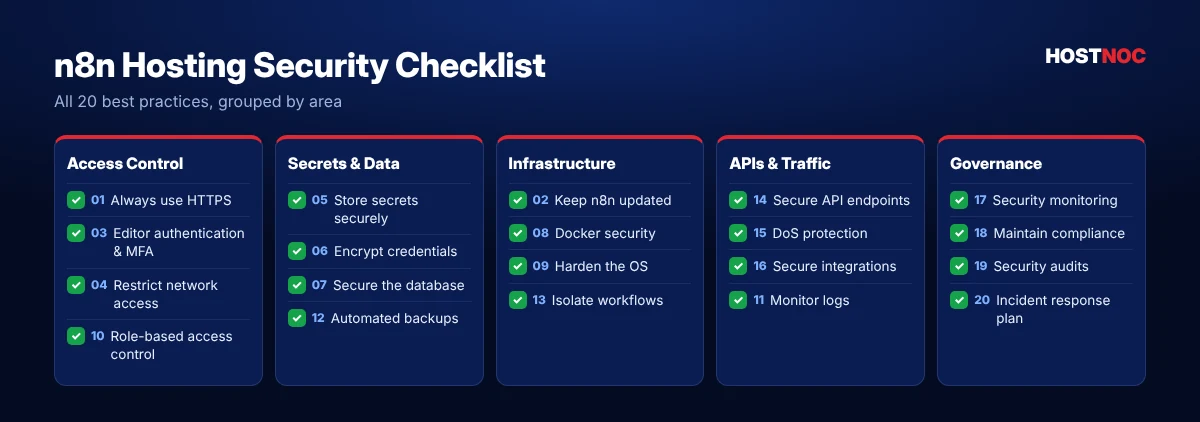
Building a workflow is only half the job. Once automations become business-critical, reliability matters as much as the workflow logic. Many teams learn this the hard way. See our list of common n8n hosting mistakes.
Use Queue Mode When Workloads Grow
If your n8n instance processes a large number of executions, look into queue-based scaling instead of simply running more workflows at the same time. Test concurrency limits against your real workload and the rate limits of the APIs you use.
Create an Error Workflow
Add a dedicated error-handling workflow that alerts your team when important workflows fail. Include the workflow name, execution ID, failed node, error message, timestamp, a link to the execution and the related customer or record ID.
n8n keeps execution history and lets you inspect and retry failed executions, which makes a clear error-handling process valuable in production.
Make Workflows Idempotent
If a workflow runs twice, it should not create two contacts, charge a customer twice or send duplicate notifications. Use unique IDs, duplicate checks, database constraints, CRM searches before creation and execution logs. For example, search for an email address before creating a new CRM contact.
Respect API Limits
External services often limit requests. Add batching, delays, pagination and retry logic where needed. Avoid firing hundreds of API calls at once just because n8n can run fast.
Keep Credentials Separate From Workflow Logic
Never hard-code API keys or passwords in Code nodes. Use n8n credentials with proper access controls. For larger teams, review who can access workflows and credentials, since n8n’s permission model separates the two.
Choose Reliable Hosting
Business-critical automation needs more than a workflow editor. You also need reliable uptime, backups, updates, monitoring, secure credentials and enough resources for your execution volume. If you do not want to manage the infrastructure yourself, consider managed n8n hosting. Prefer to do it yourself? Follow our guide on how to install n8n on a VPS.
Conclusion
These 15 n8n workflow examples show how much repetitive work you can hand off to automation, from routing leads and drafting social posts to triaging tickets, summarizing meetings and monitoring servers. Start with one workflow that saves your team the most time, test it thoroughly, then expand step by step.
As your automations become business-critical, pair solid workflow design with reliable hosting so every workflow runs on time, every time. Start with the n8n use cases that save your team the most time, use n8n templates to move faster and expand step by step.
Ready to Run These Workflows in Production?
Get managed n8n hosting from HostNOC with reliable uptime, backups, security and expert support built in.
FAQs
n8n Workflow Examples: Frequently Asked Questions
Quick answers to the questions people ask most.
What is an n8n workflow?
An n8n workflow is a set of connected nodes that runs an automated process. It usually starts with a trigger, processes data through one or more nodes and ends with an action such as updating a CRM, sending an email or calling an API. The n8n workflow examples in this guide show how that works in real business scenarios.
What are some common n8n use cases?
Common n8n use cases include CRM automation, lead routing, marketing reporting, customer support triage, data synchronization, AI content processing, notifications, API integrations, backups and DevOps automation. Ready-made n8n templates exist for most of these n8n use cases.
Can I use n8n without coding?
Yes. Many n8n workflows can be built by connecting nodes and configuring their options. n8n also supports expressions, the Code node, HTTP requests and APIs when you need more customization. You can also import n8n templates and edit them visually.
Can n8n connect to my existing business applications?
Yes. n8n integrates with a large range of apps and also supports generic HTTP/API requests. Integrations include HubSpot, Gmail, Google Sheets, Slack, GitHub, OpenAI, Jira, Linear and many more.
Should I self-host n8n or use managed hosting?
It depends on how much infrastructure you want to manage. Self-hosting gives you direct control, while managed hosting reduces the work involved in deployment, updates, monitoring, backups and scaling. Compare both in our self-hosted vs cloud n8n guide.

Featured Post

7 IT Priorities for 2027
Information technology is entering a period in which simply maintaining systems is...

n8n Docker Installation Guide: Complete Step-by-Step Setup for Beginners and Production
Step-by-step n8n Docker installation guide covering Docker Compose, PostgreSQL, HTTPS, environment variables,...

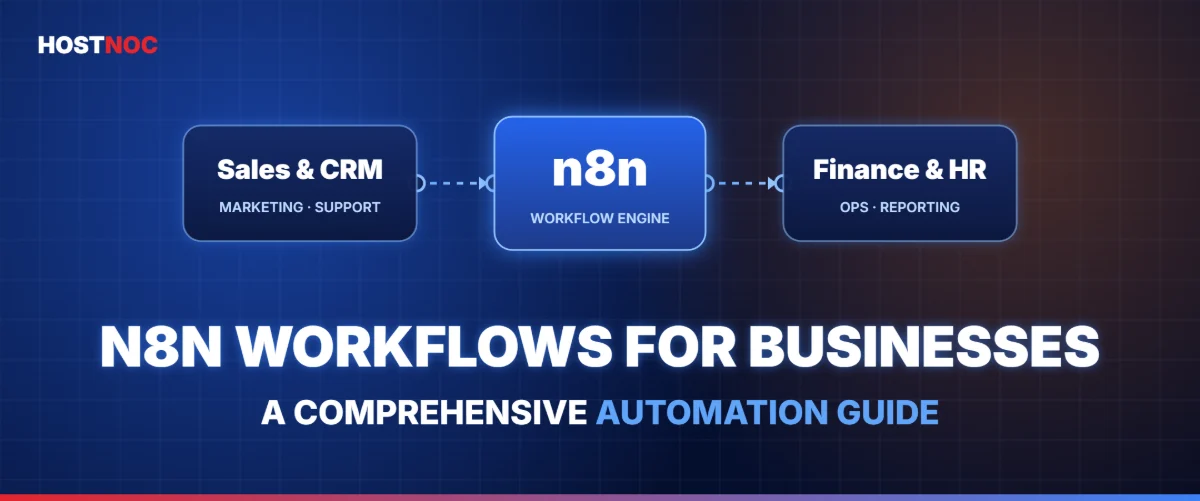

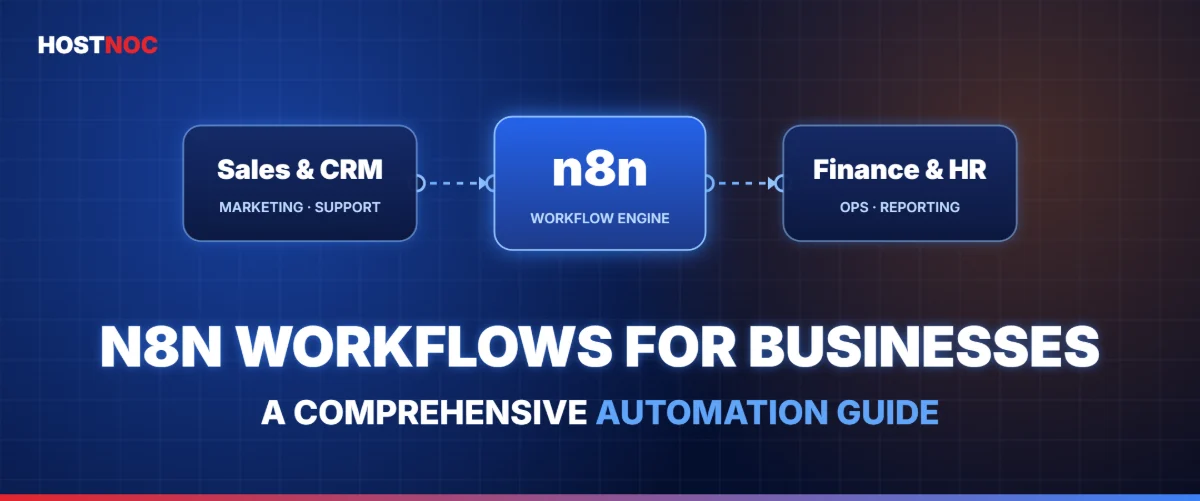
n8n Workflows for Businesses: A Comprehensive Guide
A complete guide to n8n workflows for businesses: how they work, core...
Follow us on:


Get the Latest News & Deals
Sign up to receive the latest news, updates and special offers from HostNOC.
I'd like to receive: